
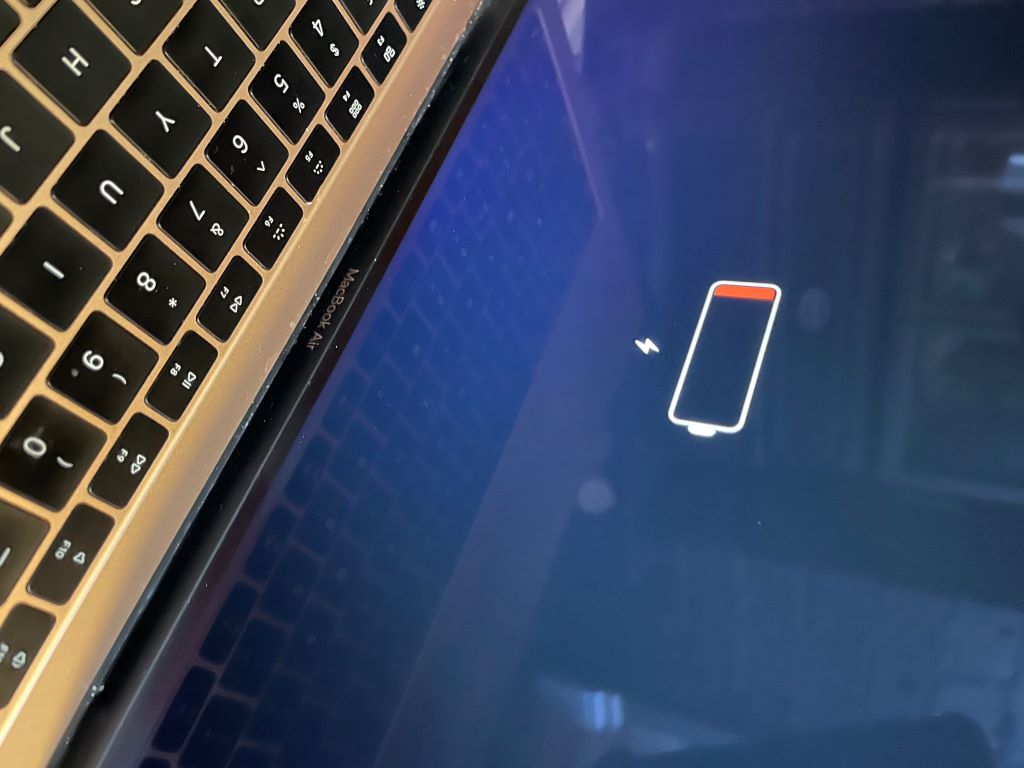
Your MacBook is a powerful machine designed to keep up with your busy lifestyle. However, nothing disrupts productivity quite like a dying battery. Whether you’re working from a coffee shop, traveling, or simply away from your charger, maintaining optimal battery health is essential. Fortunately, TechedKnow offers practical solutions to help you extend your MacBook’s battery life and monitor its performance effectively.
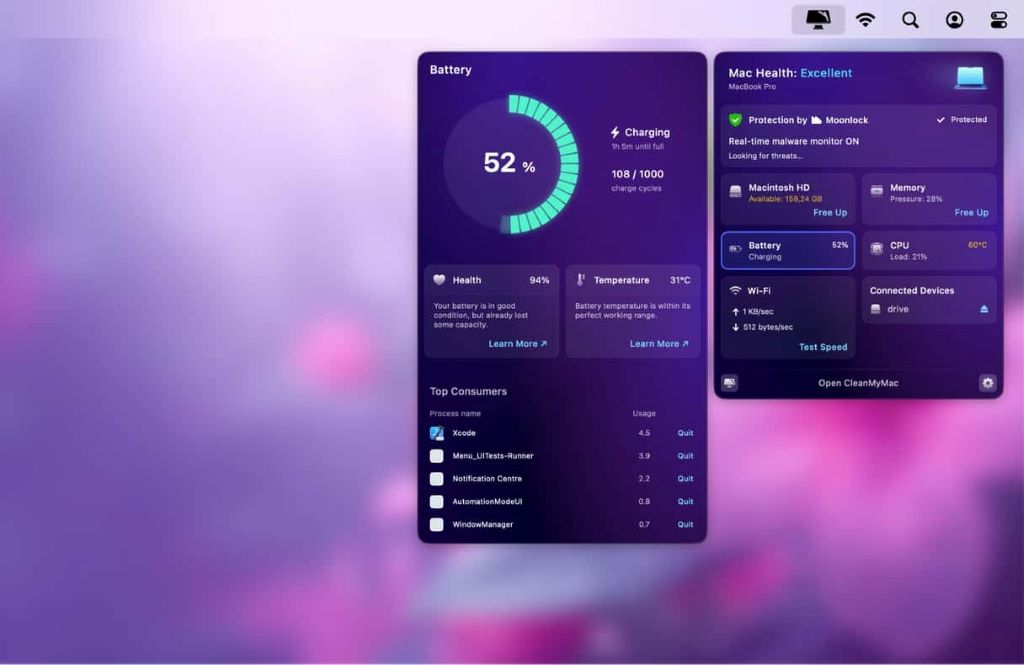
Understanding how to care for your MacBook’s battery can significantly extend its lifespan. Additionally, using the right tools makes this process much easier. A reliable macbook battery health app can provide detailed insights into your battery’s condition and offer actionable recommendations. These applications track charge cycles, monitor battery temperature, and alert you to potential issues before they become serious problems.
Apple has made significant improvements to battery technology over the years. However, even the best batteries require proper care and attention. Therefore, learning effective strategies to preserve battery health is crucial for every MacBook owner.
Understanding Your MacBook Battery
Modern MacBooks use lithium-ion batteries designed to retain up to 80% of their original capacity after 1000 charge cycles. This technology offers excellent performance, but it’s not indestructible. Over time, batteries naturally degrade due to chemical reactions that occur during charging and discharging.
Several factors influence battery degradation. Temperature plays a significant role, as extreme heat or cold can damage battery cells. Similarly, keeping your battery at 100% charge constantly or letting it drain to 0% regularly can accelerate wear. Understanding these factors helps you make informed decisions about battery care.
Apple provides built-in tools to check battery health through System Settings. However, third-party applications often provide more detailed information and advanced features. These apps can identify which applications consume the most power and suggest optimizations to improve battery efficiency.
Optimize Your MacBook Settings
Your MacBook’s settings have a substantial impact on battery performance. Start by adjusting your display brightness, as the screen is one of the biggest power consumers. Reducing brightness even slightly can extend battery life significantly.
Next, review your energy saver preferences. Navigate to System Settings and select Battery to access power management options. Enable features like putting hard disks to sleep when possible and slightly dimming the display on battery power. These small adjustments accumulate to create noticeable improvements.
Additionally, consider disabling keyboard backlighting when you don’t need it. While convenient in dark environments, this feature drains battery unnecessarily in well-lit spaces. Furthermore, turning off Bluetooth and Wi-Fi when not in use prevents your MacBook from constantly searching for connections.
Manage Background Applications
Many applications run in the background without your knowledge, consuming valuable battery power. Therefore, regularly checking which apps are active is essential. Use Activity Monitor to identify power-hungry applications and quit those you’re not actively using.
Automatic updates and cloud syncing services often run continuously, draining your battery. However, you can schedule these activities for times when your MacBook is plugged in. Services like Dropbox, Google Drive, and iCloud can be configured to pause syncing on battery power.
Browser tabs are another common culprit. Each open tab consumes memory and processing power, especially those with active content like videos or animations. Consequently, closing unnecessary tabs can provide an immediate battery boost. Consider using tab management extensions to help organize and reduce open tabs.
Update Your Software Regularly
Software updates often include battery optimization improvements. Apple continuously refines macOS to enhance energy efficiency and fix bugs that may cause excessive battery drain. Therefore, keeping your system updated ensures you benefit from these enhancements.
However, be strategic about when you update. Major updates sometimes initially consume more power as the system reindexes files and adjusts settings. According to Apple’s official support documentation, allowing your MacBook to complete these processes while plugged in helps prevent unnecessary battery drain.
Third-party applications also release updates that improve efficiency. Enable automatic updates for trusted applications or manually check for updates weekly. Outdated software often contains inefficiencies that modern versions have resolved.
Control Temperature and Physical Care
Temperature management is critical for battery longevity. Lithium-ion batteries perform best between 50°F and 95°F. Exposure to extreme temperatures, particularly heat, can permanently reduce battery capacity. Therefore, avoid leaving your MacBook in hot cars or direct sunlight.
Ensure proper ventilation during use. Place your MacBook on hard, flat surfaces that allow air to circulate freely. Avoid using it on soft surfaces like beds or couches that block ventilation ports. Additionally, keep vents clean and dust-free to maintain optimal airflow.
Physical damage can also affect battery performance. Handle your MacBook carefully to prevent impacts that might damage internal battery connections. Furthermore, if you notice swelling, unusual heat, or other physical abnormalities, contact Apple support immediately.
Adjust Power-Intensive Features
Certain MacBook features consume significant power. The Touch Bar, available on some models, refreshes constantly and drains battery. While you cannot disable it completely, reducing its brightness helps conserve energy.
Graphics-intensive applications like video editing software, games, and 3D rendering tools require substantial power. When working on battery, consider postponing these tasks or reducing quality settings. Similarly, external devices like hard drives, mice, and keyboards draw power from your MacBook.
Location services and notifications also impact battery life. Review which apps have permission to access your location and receive notifications. Limiting these permissions for non-essential apps reduces background activity and extends battery life.
Calibrate Your Battery Periodically
Battery calibration ensures accurate charge level reporting. While modern MacBooks rarely require manual calibration, performing this process occasionally can improve battery meter accuracy. To calibrate, fully charge your MacBook, then use it normally until it automatically sleeps due to low battery.
Let your MacBook rest in sleep mode for at least five hours. Afterward, charge it uninterrupted to 100%. This process helps the battery management system accurately track capacity and provide reliable charge estimates.
However, avoid calibrating too frequently. Once every few months is sufficient for most users. Excessive calibration offers no additional benefits and may unnecessarily stress the battery.
Consider Battery Replacement Options
Eventually, all batteries reach the end of their useful life. When your battery health drops below 80%, you may notice significantly reduced runtime. At this point, replacement becomes worth considering.
Apple offers official battery replacement services through their stores and authorized service providers. While more expensive than third-party options, official replacements ensure quality and maintain your warranty. Prices vary depending on your MacBook model.
Third-party repair shops offer more affordable alternatives. However, research carefully to ensure they use quality parts and employ skilled technicians. Poor-quality batteries can damage your MacBook or pose safety risks. Therefore, prioritize reputation and reviews when selecting a service provider.
Conclusion
Improving your MacBook battery performance requires a combination of smart habits, optimized settings, and proper maintenance. By adjusting display brightness, managing background applications, and maintaining appropriate temperatures, you can significantly extend battery life. Additionally, using monitoring tools helps you identify issues early and take corrective action.
Remember that batteries naturally degrade over time. However, following these strategies slows this process and maximizes your MacBook’s usability. Regular software updates, thoughtful power management, and occasional calibration keep your battery performing optimally. When replacement eventually becomes necessary, choose reputable service providers to ensure quality and safety.
Implementing these practices today will reward you with longer battery life and improved MacBook performance for years to come.
Frequently Asked Questions
How often should I charge my MacBook battery?
There’s no specific schedule for charging your MacBook. Modern lithium-ion batteries don’t suffer from memory effects, so you can charge whenever convenient. However, avoid keeping it plugged in constantly at 100% or regularly draining it to 0%. Maintaining charge levels between 20% and 80% typically promotes longer battery lifespan.
What is considered good battery health for a MacBook?
Apple considers batteries to maintain normal health when they retain at least 80% of their original capacity. New MacBooks show 100% health, and this gradually decreases with use. When health drops below 80%, you may notice significantly shorter battery life and should consider replacement.
Can I use my MacBook while it’s charging?
Yes, using your MacBook while charging is perfectly safe and won’t damage the battery. In fact, performing power-intensive tasks while plugged in is recommended because it prevents unnecessary battery discharge cycles. Modern MacBooks intelligently manage power distribution between the battery and AC adapter.
How long should a MacBook battery last on a single charge?
Battery life varies depending on your model and usage patterns. Newer MacBook Air models can last 15-18 hours with light use, while MacBook Pros typically range from 10-17 hours. Heavy tasks like video editing or gaming significantly reduce runtime. Your actual battery life depends on screen brightness, running applications, and system settings.
Do battery health apps really help improve battery life?
Battery health apps don’t directly improve battery capacity, but they provide valuable insights that help you make better decisions. These applications monitor charge cycles, identify power-hungry apps, and alert you to potential problems. Armed with this information, you can adjust your habits and settings to optimize battery performance and longevity.
Related Topics:
Tech Gadgets to Make Home More Energy Efficient