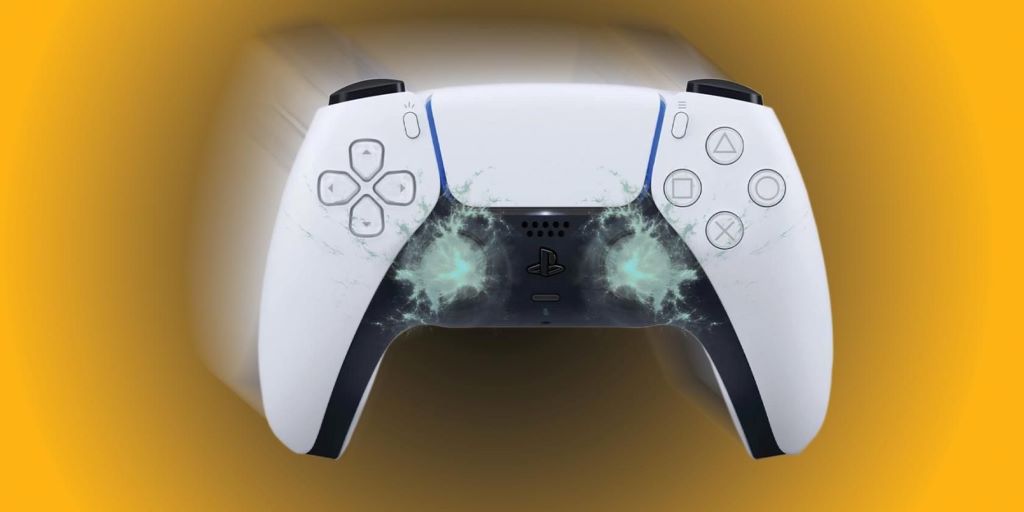
The PlayStation 5 (PS5) has taken the gaming world by storm with its stunning graphics, lightning-fast load times, and incredible gaming experiences. However, one common issue that many players face with their controllers is “stick drift.” Stick drift occurs when the analog sticks on the controller register movement even when you’re not touching them. This can be frustrating, especially in precision-based games. Fortunately, there are a variety of methods to resolve PS5 stick drift without the need for specialized tools.
In this guide, we’ll cover five effective methods for fixing PS5 stick drift, so you can get back to your gaming sessions without hassle. Additionally, if you want a detailed breakdown on how to fix PS5 stick drift, you can check out this article on visit link: https://duckysdesktop.com/latest-gadget/how-to-fix-stick-drift-ps5/ . Let’s dive into the methods!
-
Clean the Analog Sticks and Controller
One of the most common causes of PS5 stick drift is the accumulation of dust, dirt, and debris around the analog sticks. Over time, this build-up can interfere with the functionality of the sensors and cause unwanted drift. Thankfully, this is one of the easiest fixes, requiring no tools other than some basic cleaning supplies.
How to Clean the Sticks:
- Power off your PS5 and disconnect the controller.
- Use a microfiber cloth to gently wipe the surface of the analog sticks.
- For more stubborn grime, dampen the cloth slightly (make sure it’s not too wet).
- Use compressed air (if available) to blow out any particles that may be lodged between the sticks and the controller.
By regularly cleaning your controller, you can maintain its performance and prevent stick drift from occurring in the future.
-
Reset the Controller
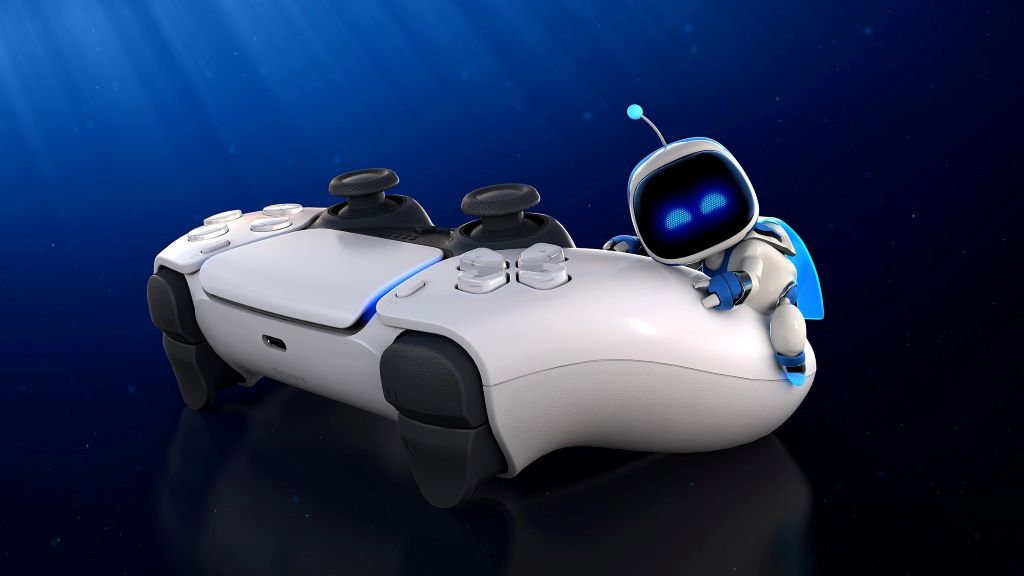
Another quick and easy method to fix PS5 stick drift is to reset your controller. This action reverts your controller to its default settings and can often fix minor issues, including stick drift. The PS5 controller has a small reset button located at the back, which allows you to reset it without the need for special tools.
How to Reset the PS5 Controller:
- Find the small hole near the L2 button on the back of the controller.
- Use a paperclip or a similar object to press and hold the reset button for about 5-10 seconds.
- After resetting, reconnect your controller to the PS5 using a USB cable and check if the stick drift has been resolved.
This simple method can be surprisingly effective and only takes a few seconds to complete. It’s a great first step before moving on to more complex fixes.
-
Calibrate the Controller
Calibrating your controller can also help resolve stick drift. Calibration ensures that the analog sticks on your controller are correctly aligned and functioning as intended. This method works by recalibrating the joystick’s neutral position, allowing the PS5 to accurately detect any movements you make.
To calibrate your PS5 controller, follow these steps:
- On your PS5, go to Settings > Accessories > Controllers.
- Select Reset All Settings to reset the controller settings to default.
- Afterward, test the controller to check if the drift has been fixed.
Alternatively, you can find some helpful guides or use the software from Duckysdesktop.com, which provides easy-to-follow steps on how to address various gaming-related issues, including stick drift.
-
Update the Controller Firmware
Sometimes, PS5 stick drift can be the result of outdated firmware. Sony frequently releases updates for the PS5 system software, and these updates can include fixes for controller-related issues. It’s a good idea to ensure that your PS5 controller has the latest firmware installed.
How to Update Your PS5 Controller Firmware:
- Turn on your PS5 and connect the controller using a USB cable.
- Go to Settings > System > System Software > System Software Update and Settings.
- Select Update System Software and check for available updates.
- If an update is available, follow the prompts to install it.
Updating the controller firmware can fix bugs, improve performance, and resolve stick drift in some cases. Always keep your system up-to-date for optimal performance.
-
Use a Deadzone Adjustment Tool
If you’re still experiencing PS5 stick drift after trying the previous methods, you may want to adjust the deadzone settings. The deadzone is the range of motion that the controller’s analog sticks have before the PS5 registers any input. If your deadzone is set too low, even the slightest movement can cause stick drift.
How to Adjust the Deadzone:
- Go to Settings > Accessibility > Controllers on your PS5.
- Look for the Deadzone Adjustment option.
- Increase the deadzone to a higher value, which will effectively reduce the sensitivity of the analog sticks.
By adjusting the deadzone, you can reduce or eliminate the unwanted drift without having to fix the physical controller itself.
Read Also: The 5 Best Console Emulators for Your Mac
Popular FAQs
-
What causes PS5 stick drift?
PS5 stick drift is often caused by dirt, dust, or wear and tear on the analog stick sensors. It can also be a result of outdated firmware or poor calibration.
-
How do I know if my PS5 controller needs to be reset?
If your PS5 controller is not responding as expected or exhibiting stick drift, resetting the controller can help resolve the issue.
-
Can I fix PS5 stick drift without opening the controller?
Yes, all the methods outlined above—cleaning, resetting, calibrating, updating firmware, and adjusting deadzones—can be done without opening the controller.
-
How can I prevent stick drift from happening again?
Regularly clean your controller, avoid excessive force when using the analog sticks, and make sure to update your firmware regularly to prevent future stick drift issues.
-
Is PS5 stick drift covered under warranty?
Yes, if your PS5 controller is still under warranty, stick drift may be covered. However, it’s best to contact Sony support to confirm the specifics of your warranty.
Conclusion
PS5 stick drift is a common issue, but it’s also one that can be easily fixed with a little time and effort. From simple cleaning to recalibration and firmware updates, there are multiple methods to tackle this problem without requiring specialized tools. If you’re still encountering issues after trying these fixes, you may want to explore additional resources, such as Duckysdesktop.com, which offers great insights on how to maintain your gaming equipment.
For a more detailed guide on how to fix PS5 stick drift, be sure to check out Duckysdesktop.com. With these steps, you can ensure that your gaming sessions remain uninterrupted by stick drift issues.
Read More: Exploring The Benefits of Game Streaming